Syntax Highlighting and Autocomplete
Syntax Highlighting
With your .yarn file open in VS Code, you can verify that the Yarn Spinner for Visual Studio Code Extension is active by looking in the bottom right-hand corner of the screen, and locating the words “Yarn Spinner”.

The bottom right-hand corner of Visual Studio Code window will only show “Yarn Spinner” if both the Yarn Spinner for Visual Studio Code extension is installed, and the currently active file is recognised as a .yarn file by its extension.
--- and === separators, and the character name are highlighted in our example script so far.Variables, declarations of variables, commands, and all other Yarn Script syntax will be appropriately highlighted, based on the colour theme you are using in VSCode.
Autocomplete
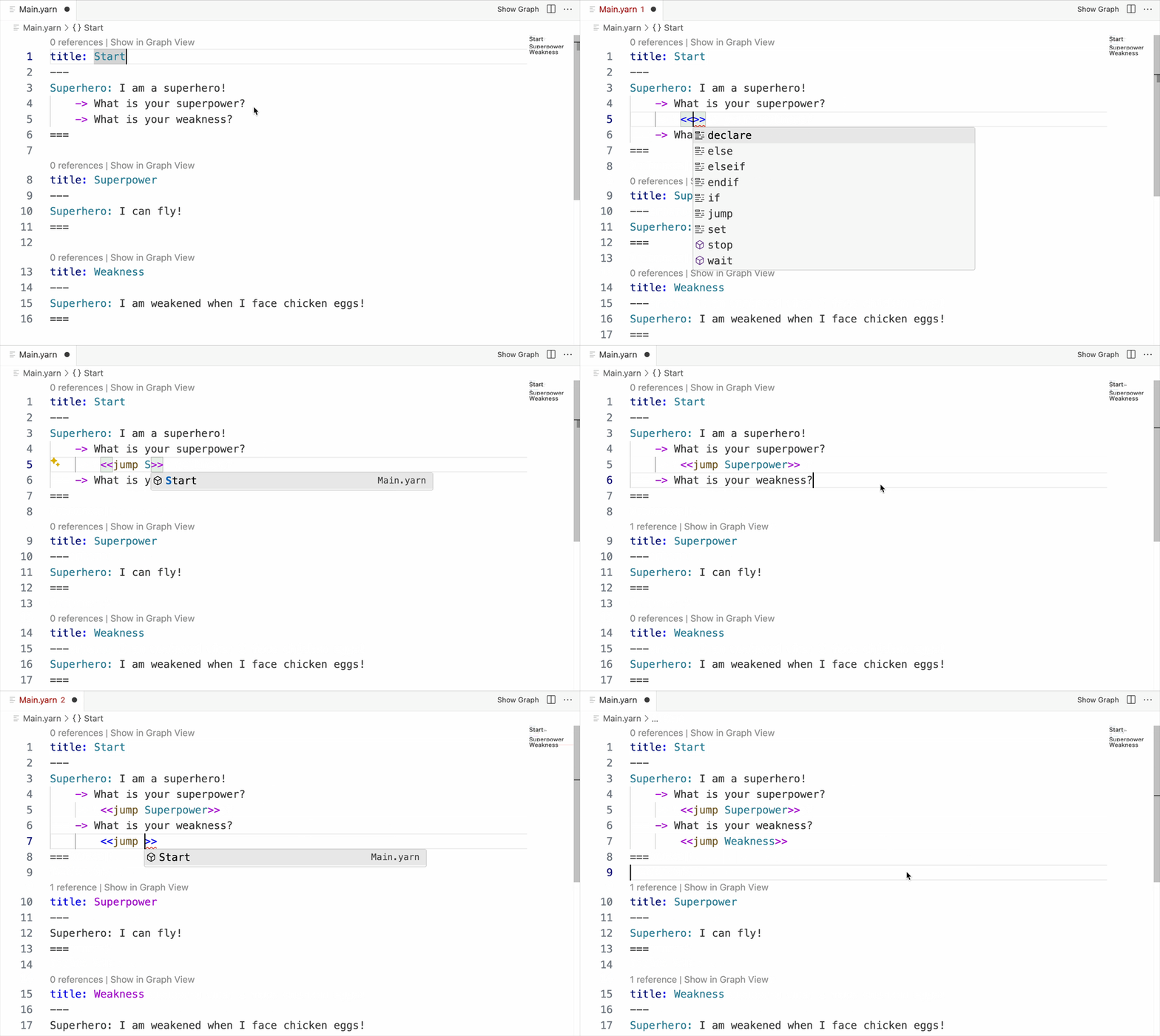
In addition to syntax highlighting your Yarn Scripts, Yarn Spinner for Visual Studio Code knows the name of nodes, and will provide autocomplete suggestions based on other nodes that exist in your project when you start writing <<jump>> commands.
Update your Main.yarn file in Visual Studio Code to resemble the following.
title: Start
---
Superhero: I am a superhero!
   -> What is your superpower?
   -> What is your weakness?
===

title: Superpower
---
Superhero: I can fly!
===

title: Weakness
---
Superhero: I am weakened when I face chicken eggs!
===
Add the appropriate <<jump>> commands to your Main.yarn file in Visual Studio Code, and look out for the autocomplete suggestions.
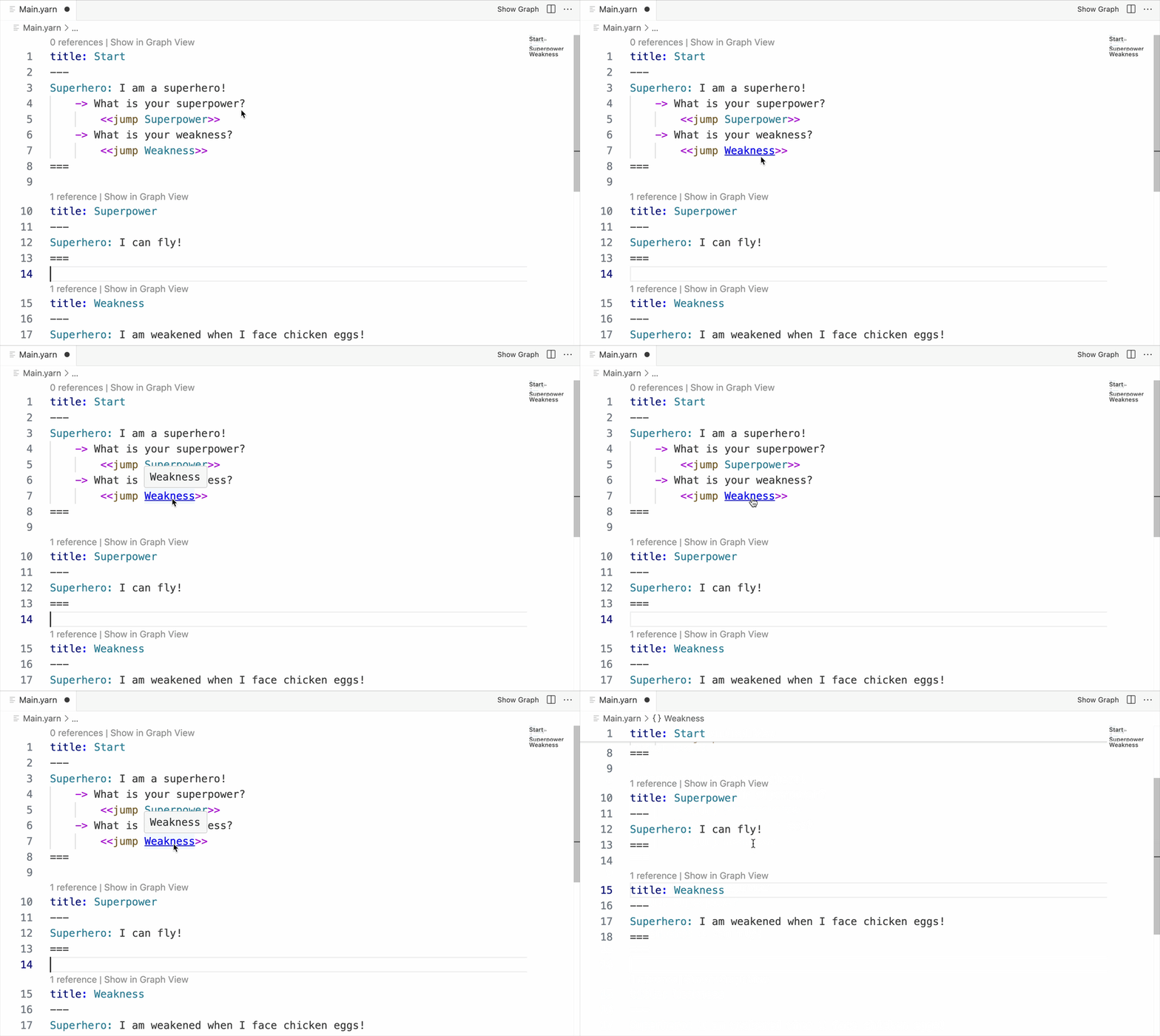
You can also command- (on macOS) or control-click (on Windows or Linux) on node names in commands to jump to the node in your Yarn Script.
It also knows about any variables you have declared, and will offer to autocomplete them as needed as well. But it has more tricks up its sleeve when it comes to variables: you can provide extra information.
For example, if you have a variable that it used to count how many sheep a player has seen:
<<declare $sheep = 0>>
You can add a comment with three / in front of it to provide a description:
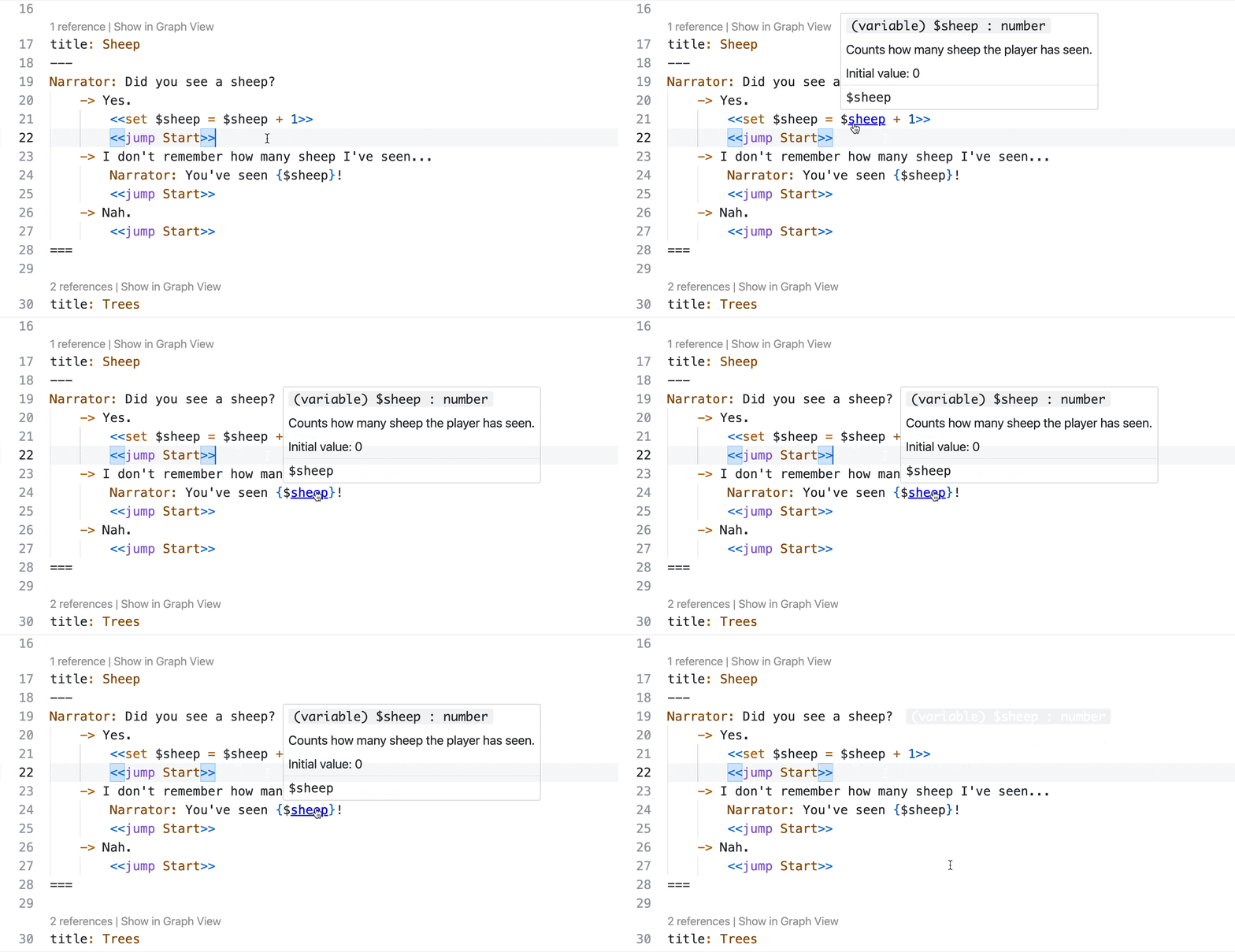
/// Counts how many sheep the player has seen.
<<declare $sheep = 0>>
Then, when you use the variable, you can hover over it in Visual Studio Code for a reminder of its purpose and its default value.
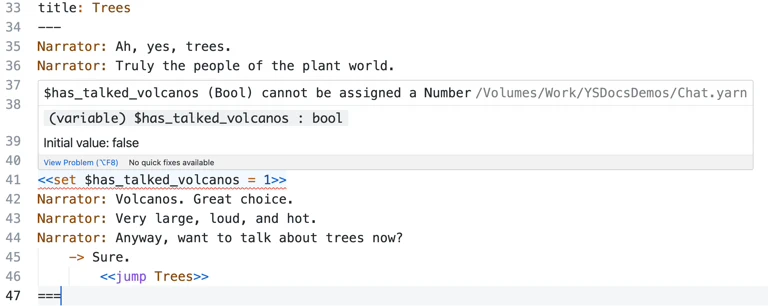
 Yarn Spinner for Visual Studio Code also helps you keep track of any potential type issues, when you might accidentally try and use a variable without adhering to its type. So, if you
 <<declare>> a variable to be a certain type, for example a boolean:
/// Tracks whether the player has talked about volcanos.
<<declare $has_talked_volcanos = false>>
And then later attempt to use that same variable in a way that would produce an error, for example by attempting to assign a number to it (instead of a boolean value), then an error will be shown: