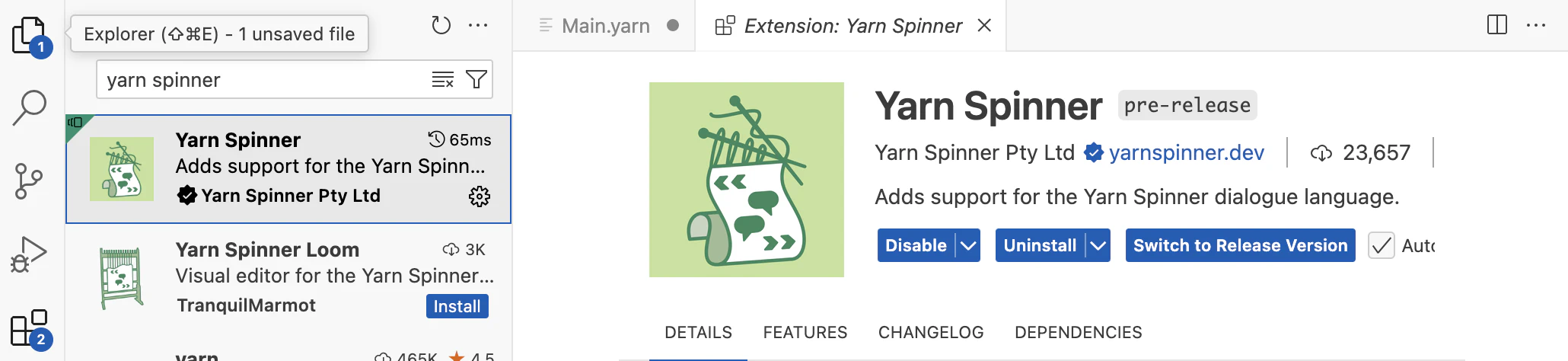
Installing the Extension
If you haven’t downloaded and installed Visual Studio Code, do that first, then return here.
If you’re already familiar with VS Code and VS Code extensions, you can just install the extension secretlab.yarn-spinner, or click here and hit the install button, and you’ll be ready to go.
Once you’ve got Visual Studio Code installed on your system, you’ll want to install the Yarn Spinner extension. To install the Yarn Spinner Extension:
- Launch Visual Studio Code.
- Open the Extensions view. To do this, select the blocks symbol from the left-hand sidebar, or press Command+Shift+K on macOS, or Control+Shift+X on Windows or Linux.
- Search for the Yarn Spinner Extension. With the Extensions view open, type “Yarn Spinner” into the search field.
- Install the Extension. Once the results have loaded, click “Install” next to the Secret Lab-provided Yarn Spinner Extension.
That’s all you need to do to install the extension! You’re ready to write and edit Yarn scripts with Yarn Spinner for Visual Studio Code.