Commands
Visual Studio Code has feature known as commands. Commands trigger an action in Visual Studio Code, allowing you to do all sorts of things.
Yarn Spinner for Visual Studio Code adds a collection of commands relating to Yarn Scripts. To access commands, press Shift + Control/Command + P, or choose the View menu → Command Palette…
 With the command palette open, you can filter the (many) commands to show exclusively show the commands provided by Yarn Spinner by typing
 Yarn Spinner.
We’ll take a look at each of the commands, one-by-one, next.
Preview Dialogue
The Preview Dialogue command summons a tab in Visual Studio Code that allows you to play your narrative through.
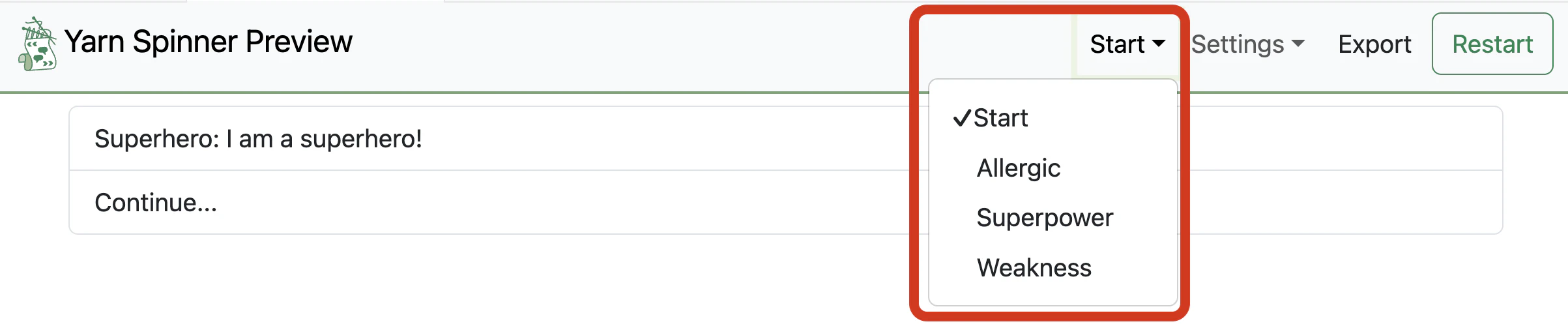
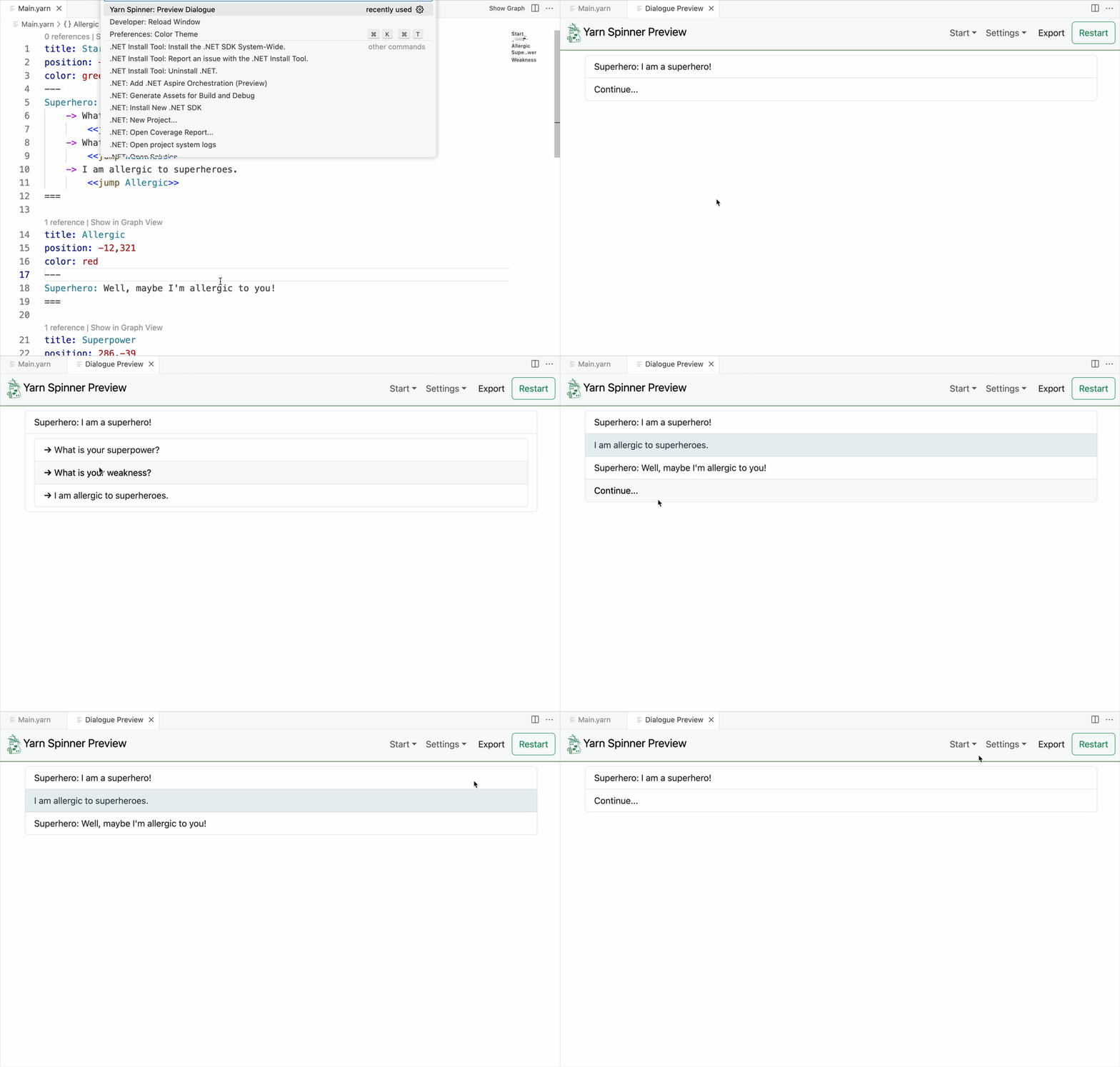 You can use the drop-down in the top bar of the preview to choose which node to run as the start node. By default, Yarn Spinner for Visual Studio Code will run the node named
 Start as the first node.
 You can also choose to toggle the visibility of any variables that might be present, and their states/values, as well as export the preview player as a standalone HTML file.
Export Dialogue as HTML
This Export Dialogue as HTML command does what it says: it exports the equivalent of the aforementioned preview tab as a standalone HTML file. You may find this useful if you’re prototyping a narrative and want to share it for feedback.
Show Graph
The Show Graph command performs the same function as clicking the Show Graph button: it summons the graph view.
Export Dialogue as Recording Spreadsheet
The Export Dialogue as Recording Spreadsheet command allows you to save a .xlxs file (for Microsoft Excel, Google Sheets, or other similar tools) of every line in your dialogue, making it easier for you to pass dialogue to translation or editing services.
// TODO where to find more on localisation in the docs
Create New Yarn Project
The Create New Yarn Project command will add a .yarnproject file to the current folder. This file represents a Yarn Project, which you’ll learn more about when working with a game engine.
// TODO add links appropriately
Export Dialogue as Graph
The Export Dialogue as Graph command allows you to save a .dot file of your dialogue, representing it in a graph view, much like the in-built Graph View. This .dot file can be opened by a variety of tools for processing or visualisation.