Options and Lines
Of course, a Yarn Script with only one node and a single line of dialogue doesn’t do much. Let’s make things a bit more complex.
Adding some options
Using Try Yarn Spinner, update the Yarn Script you’re writing to look a bit like the following Start node.
title: Start
---
Narrator: Hi, I'm the narrator for this beginner's guide!
Narrator: I'm talking to you with Yarn Spinner!
Narrator: What do you think of all this, then?
    -> It's alright, I guess.
        Narrator: Well, that's not very nice.
        Narrator: I'm trying my best here.
    -> It's great. I love it.
        Narrator: Oh, you're too kind.
===
In this node, there are the following elements:
- the header, with the node’s title
- the
---marker, which indicates where the body of a node begins - some lines, representing a Narrator speaking, which we’ll get to in a moment…
- and the
===marker, which indicates the end of a node
Let’s chat about lines…
Almost everything is a line
When you write Yarn Spinner dialogue, just about every line of text that you write in a node is a line. When a node is run, Yarn Spinner runs each line, one at a time, and sends it to your game.
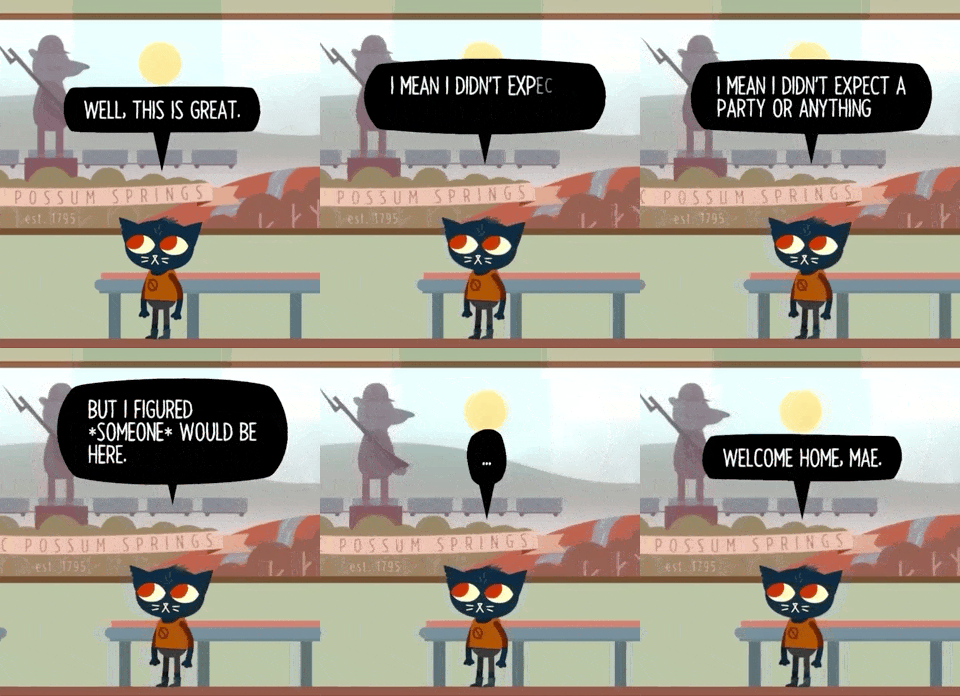
A line of dialogue is just the thing you want some entity or character to say, usually beginning with the name of the entity speaking. Here’s an example from the game we originally wrote Yarn Spinner for, Night in the Woods:
Mae: Well, this is great.
Mae: I mean I didn't expect a party or anything
Mae: but I figured *someone* would be here.
Mae: ...
Mae: Welcome home, Mae.
Yarn Spinner sends each of these lines, one at a time, to the game. The game is responsible for taking the text, and presenting it to the player; in the case of Night in the Woods, this means drawing the speech bubble, animating each letter in, and waiting for the user to press a key to advance to the next line:
Lines of dialogue can contain just about any text, except for some special characters that Yarn Spinner uses to add extra information to a line.
If there is a set of characters without spaces before a colon (:) at the beginning of the line, Yarn Spinner will mark that as the name of the character. This information will then be passed to your game, so that you can change the way that lines are shown based on the character who’s saying them. For example:
This is a line of dialogue, without a character name.
Speaker: This is another line of dialogue said by a character called "Speaker"
Options provide choices within nodes
After the lines of the Narrator speaking you’ll notice some lines that are indented, and start with a -> interspersed amongst other lines from the Narrator:
title: Start
---
Narrator: Hi, I'm the narrator for this tutorial!
Narrator: I'm talking to you with Yarn Spinner!
Narrator: What do you think of all this, then?
    -> It's alright, I guess.
        Narrator: Well, that's not very nice.
        Narrator: I'm trying my best here.
    -> It's great. I love it.
        Narrator: Oh, you're too kind.
        Narrator: I'm just doing my job.
===
These lines are called options, and they are how you let the player decide what to say. Options let you show multiple potential lines of dialogue to the player, who is then able to choose one. As you might’ve guessed, an option line is denoted by starting the line with a ->. After that, the content of the line is like any other line.
With the aforementioned Yarn Script, or something very similar, in Try Yarn Spinner, click the Test button, you’ll see the dialogue appear in the right side of the screen, and as you progress through it, eventually you’ll hit some options, which are presented to the player.
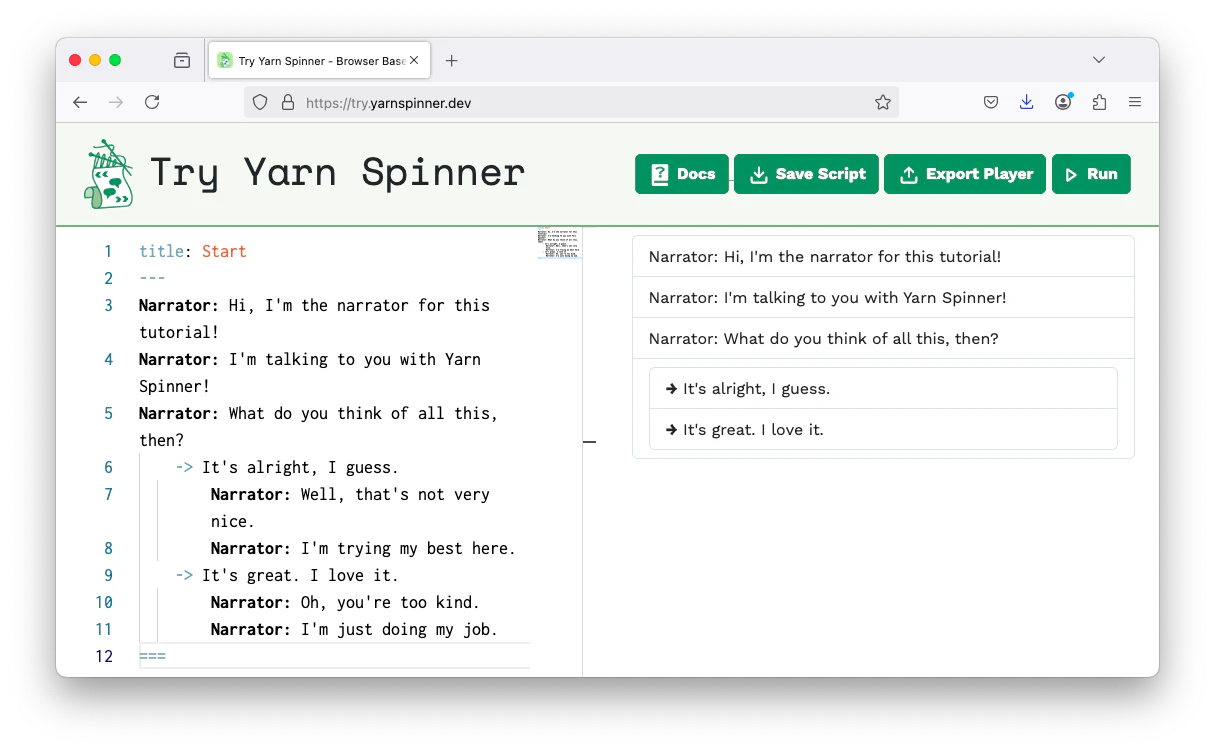
Depending on the choice of option, one set of lines from the Narrator, reacting to the player’s choice, will be displayed.
Nesting options within options
You can also nest options inside other options:
title: Start
---
Narrator: Hi, I'm the narrator for this beginner's guide!
Narrator: I'm talking to you with Yarn Spinner!
Narrator: What do you think of all this, then?
    -> It's alright, I guess.
        Narrator: Well, that's not very nice.
        Narrator: I'm trying my best here.
            -> Are you really? I don't think so.
                Narrator: Well, I never!
                Narrator: I'm going to have to have a word with the writer.
            -> Oh, OK. I'm sorry.
                Narrator: That's better.
                Narrator: I'm glad we could resolve this.
    -> It's great. I love it.
        Narrator: Oh, you're too kind.
        Narrator: I'm just doing my job.
            -> You're doing a great job.
                Narrator: Oh, stop it, you.
                Narrator: You're making me blush.
            -> You're a natural.
                Narrator: Oh, you.
                Narrator: I'm just doing my job.
===
Put the above script in Try Yarn Spinner, and click Run to test it!
The only new thing that’s happening here is that options are inside other options. If you play this, inside Try Yarn Spinner, then you’ll be able to interact with the options based on the choices you make.
Have lots of options can get complex, so it’s often a good opportunity to break your story up into nodes and jump between them. We’ll do that next.
Next, learn about jumping between nodes.